After several months of use, I can confidently say this device has become a permanent fixture on my desk—and not just because I’m too busy to unplug it. The voice dictation works impressively well, saving both time and keyboard wear, while the video quality is sharp enough to make even Monday morning Zoom calls look respectable.
Whether you’re conferencing or simply attempting to look professional from your home office, the performance is consistently reliable. As someone with over 25–30 years in the IT industry, I don’t hand out praise lightly—but in this case, it’s well deserved.
In short, this is an excellent choice for everyday office use. Logitech continues its long-standing tradition of delivering quality products—thankfully, without requiring an IT support ticket to get started.
If only every piece of tech behaved this well, IT departments everywhere could finally take a proper coffee break.
Ricoh
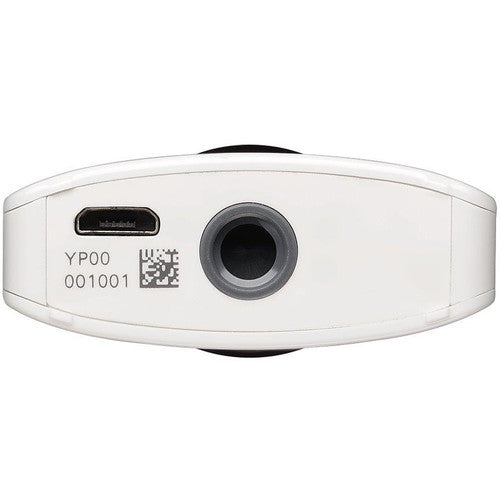
Ricoh THETA SC2 4K 360 Spherical Camera - White
Out of stock
Couldn't load pickup availability
Share
Ricoh THETA SC2 4K 360 Spherical Camera - White
The Ricoh THETA SC2, in white, is the enthusiast model of the THETA lineup, designed for casual use, for those selfie shooters who would instead capture everything in spherical 360° and in 4K. The THETA SC2 is simple to operate for beginners and everyone else, and it's so compact it can be kept in your pocket at all times and pulled out in any situation to capture 360 photos and videos. A self-timer button gives you the flexibility to set up and capture creative 360 group shots. The THETA SC2 features two ultra-wide lenses, each with a 1/2.3" CMOS sensor behind it. Whatever you shoot is captured by both lenses simultaneously, resulting in two images. The camera then automatically stitches these images internally in real-time (so you don't have to do so in post-production), and what you get is a 360 spherical image.
A follow-up to the predecessor SC model, the THETA SC2 is highly improved with 4K video recording capability and intuitive image enhancement features. For example, Face Mode detects when faces are in a weird location in the frame, or if the faces are slanted too much, and it centers them. It also brightens the faces by applying exposure compensation and noise reduction in order for the skin and faces to look brighter and better. Other new features include Night View and Underwater Mode, both of which help you get the kind of shot that you'll be glad to share instantly, The THETA SC2 is capable of recording 360° 4K video thanks to its use of the same high-speed image sensors that the advanced THETA V model has. Additionally, a supporting image processing engine allows for real-time internal stitching of the 4K video. Moreover, shake correction helps stabilize the 4K image. Up to 3-minute clips of 4K video can be recorded at a time at real-time 30 fps to the internal 14GB of memory.
Exposure compensation and noise reduction brighten faces so the skin looks brighter and better

Highlight priority automatic exposure in dark scenes captures main subjects as best as possible even when they are too brightly lit

The white balance settings are specifically designed for underwater shooting in depths of 16 to 33', in order to compensate for how colors are captured underwater

Specifications:
| Exterior/external dimensions: | 45.2 mm (W) x 130.6 mm (H) x 22.9 mm (17.9 mm *6) (D) |
| Weight: | Approx. 104 g |
| Still image resolution: | 5376×2688 |
| Video resolution/frame rate/bit rate: | 4K:3840×1920/29.97fps/54Mbps(High),32Mbps(Low) |
| 2K:1920×960/29.97fps/16Mbps(High),8Mbps(Low) | |
| Microphone: | Monoaural |
| Internal memory/Number of photos that can be recorded, time *2 | Approx. 14GB |
| Still image: Approx. 3,000 photos | |
| Video (time per recording): Max. 3 minutes *3 | |
| Video (total recording time):(4K) Approx. 32 minutes,(2K)approx. 115 minutes | |
| Object distance: | Approx. 10cm - 8 (from the front of the lens) |
| Shooting mode: | Still image: Auto, shutter priority, ISO priority, manual*2 |
| Video: Auto | |
| Exposure control mode: | Program AE, Shutter speed priority AE, ISO sensitivity AE, Manual exposure |
| Exposure compensation: | Still image: Manual compensation (-2.0 - +2.0EV, 1/3EV step) *2 |
| ISO sensitivity (standard output sensitivity): | Still image: (Automatic) ISO64 - 1600 The Upper Limit setting, |
| (ISO priority mode) ISO64 - 3200 *1 | |
| (Manual mode)ISO64 - 3200 *2 | |
| Video: (Automatic) ISO64 - 6400 The Upper Limit settings, | |
| White balance mode: | Still images/video: Auto, Outdoor, Shade, Cloudy, Incandescent light 1, Incandescent light 2, Daylight color fluorescent light, Natural white fluorescent light, White fluorescent light, Light bulb color fluorescent light, Underwater, Color temperature (2500K to 10000K) *2 |
| Shutter speed: | Still image: (Automatic) 1/25000 - 1/8 seconds, |
| (Shutter priority mode) 1/25000 - 1/8 seconds *2 | |
| (Manual mode) 1/25000 - 60 seconds *1 | |
| Video: 1/25000 - 1/30 seconds | |
| Shooting functions: | Still images: Noise reduction, DR compensation, HDR rendering, interval shooting, multi-bracket shooting, self-timer (2 seconds, 5 seconds, 10 seconds), My Settings, Videos: Self-timer (2.5 seconds, 10 seconds), My Settings, Preset: Face, Night View, Lens-by-Lens Exposure |
| Power source: | Lithium-ion battery (built-in) *4 |
| Battery life: | Still image: Approx. 260 photos *5 |
| Video: Approx. 70 minutes *5 | |
| Compression method: | Still image: JPEG (Exif Ver2.3) |
| Video: MP4 (Video: MPEG-4 AVC/H.264), Audio: AAC-LC (mono) | |
| External interface: | Micro-USB: USB 2.0, the microphone terminal |
| Lens configuration: | 7 elements in 6 groups |
| Lens_F value: | F2.0 |
| Image sensor_size: | 1/2.3 CMOS (x2) |
| Effective pixels: | Approx. 12 megapixels (x2) |
| Output pixels: | Approx. 14 megapixels |
| Usage temperature range: | 0°C - 40°C |
| Usage humidity range: | 90% or less |
| Storage temperature range: | -20°C - 60°C |
Tips for protecting your children online
In today's digital age, ensuring your children's safety while they browse the internet is paramount. As they explore the vast online world through smartphones, gaming consoles, laptops, and other devices, it's essential to implement measures to shield them from potentially harmful content and interactions. Here are some tips to help you safeguard your children online:
1. Communication is Key
Open and ongoing communication with your children about online safety is crucial. Discuss the potential dangers they may encounter online, such as pornography, cyberbullying, and violent content. Encourage them to come to you with any concerns or questions they may have.
2. Set Clear Boundaries
Establish clear rules and boundaries regarding internet usage. Define appropriate time limits for browsing and specify which websites and apps are off-limits. Make sure your children understand the consequences of violating these rules. You can also restrict some of these apps or online content utilizing device level parental controls explained below.
3. Utilize Parental Controls
Take advantage of the parental control features available on devices and internet browsers. These controls allow you to block access to specific websites, set age-appropriate content filters, and monitor your children's online activities. Familiarize yourself with the parental control options on smartphones, gaming consoles, and laptops to effectively manage your children's online experiences.
4. Educate Yourself
Stay informed about the latest trends and technologies related to online safety. Familiarize yourself with popular social media platforms, gaming communities, and messaging apps that your children may use, including the functions they provide. This knowledge will help you understand the potential risks and take appropriate action to protect your children.
5. Monitor Their Online Activities
Regularly monitor your children's online activities to ensure they are adhering to the rules and staying safe. Keep an eye on their browsing history, social media interactions, and messaging apps. Be vigilant for any signs of cyberbullying or exposure to inappropriate content.
6. Encourage Safe Online Behavior
Teach your children about the importance of practicing safe online behavior. Remind them never to share personal information, such as their full name, address, or phone number, with strangers online. Encourage them to think critically about the content they encounter and to report anything that makes them feel uncomfortable or unsafe.
7. Lead by Example
Be a positive role model for your children by demonstrating responsible and respectful online behavior yourself. Show them how to navigate the internet safely and responsibly, and emphasize the importance of treating others with kindness and empathy online.
8. Reporting abuse, making complaints and finding more information
For additional resources and guidance on online safety, visit the Australian e-Safety Commissioner's website at www.esafety.gov.au. Here, you'll find a wealth of information, including tips for parents, educational resources for children, and tools for reporting online abuse and harassment.
You can also report abuse through the website’s online form.
By following these tips and utilizing available resources, you can help keep your children safe from pornography, cyberbullying, violent content, and other unsafe material while they navigate the internet. Remember, proactive measures and open communication are key to fostering a safe and positive online environment for your family.