After several months of use, I can confidently say this device has become a permanent fixture on my desk—and not just because I’m too busy to unplug it. The voice dictation works impressively well, saving both time and keyboard wear, while the video quality is sharp enough to make even Monday morning Zoom calls look respectable.
Whether you’re conferencing or simply attempting to look professional from your home office, the performance is consistently reliable. As someone with over 25–30 years in the IT industry, I don’t hand out praise lightly—but in this case, it’s well deserved.
In short, this is an excellent choice for everyday office use. Logitech continues its long-standing tradition of delivering quality products—thankfully, without requiring an IT support ticket to get started.
If only every piece of tech behaved this well, IT departments everywhere could finally take a proper coffee break.
Tascam
Tascam Ministudio Creator US-42B Podcast Studio - Black
Out of stock
Couldn't load pickup availability
Share
Tascam US-42B Ministudio Creator Broadcast Mixer
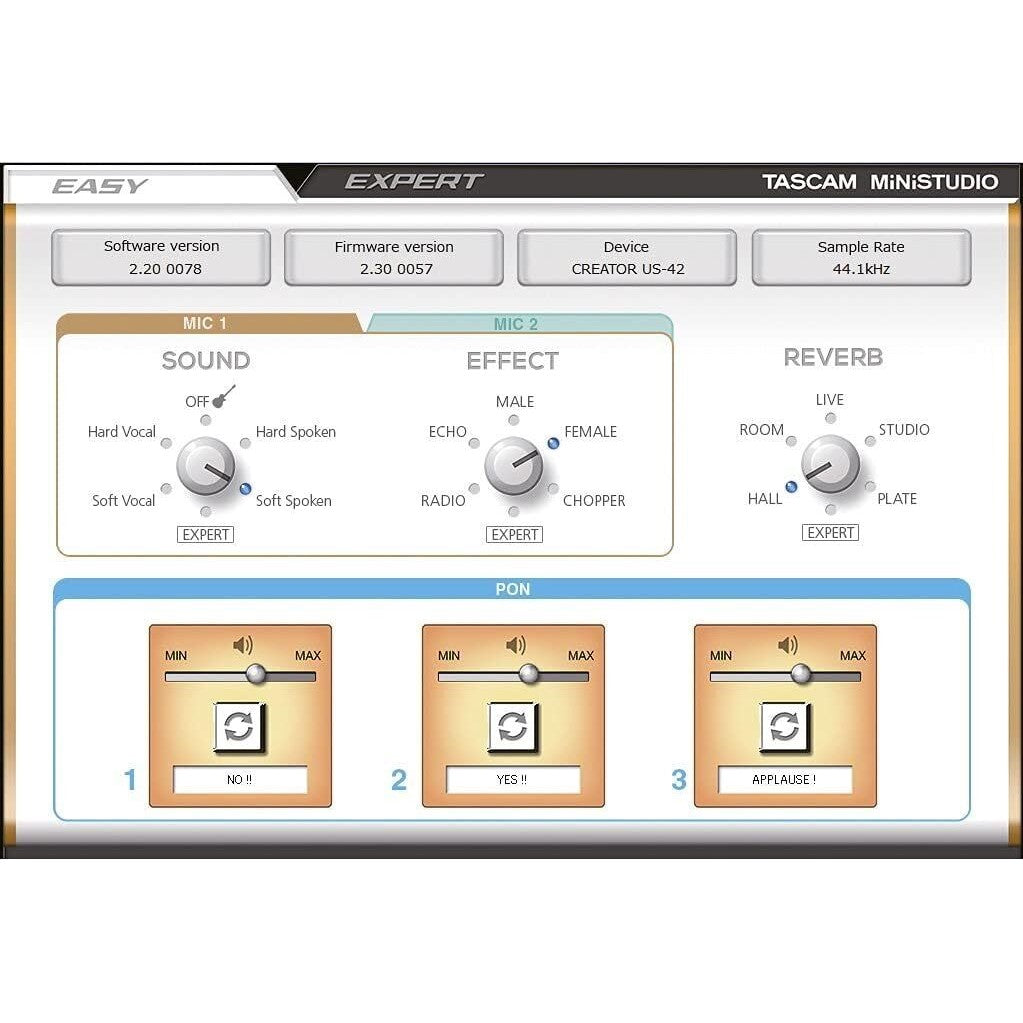
The Tascam MiNiSTUDIO Creator US-42B was created to give anyone the ability to broadcast their own listening programs to the world via the Internet. By using a specialized device with high-quality audio circuits for microphones and instruments, you lay the foundation for impressive sound in high quality. In addition, MiNiSTUDIO Creator offers some techniques to make your programs more interesting, to end up reaching more audiences. Professional broadcasters, for example, have the ability to call out jingles or claps, laughs and cheers at the touch of a button. With the sound pads of a MiNiSTUDIO Creator, you too can play such sounds at the touch of a button. There's also a ducking function that turns down the background music during announcements. And you have voice effects and room reverb at your disposal to liven up the atmosphere and increase the excitement of a program.
Did we say sound quality? Your listeners are more likely to feel engaged if you offer them sound they can easily understand. The audio circuits used in MiNiSTUDIO Creator come from music production equipment. Therefore, all you need to do is plug in a good microphone and you're all set for pure, crystal-clear sound.
Ease of use is also extremely important if you're going to be accessing the device repeatedly during broadcasts. That's why the user interface is designed with as few buttons and switches as possible, which can be used intuitively even by those who are not so familiar with audio devices. For the same reason, there are two different settings pages in the device software, where you
Features
- Richly featured audio interface for personal broadcasting, live gaming, film dubbing, and other situations that require two audio inputs and processing capabilities
- Supports ASIO, WDM, and Mac Core audio drivers
- Sample rates up to 96 kHz at 24-bit resolution
- Can be connected to an iOS device via an Apple camera adapter (Lightning USB, sold separately)
- USB audio compliance 2.0 for connection to iOS devices
- Can be powered via USB when connected to a computer
- Operation with popular DAW applications confirmed (Sonar, ProTools, Cubase, Live, Studio One, Garage Band)
- Operation with authoritative streaming and telephony applications confirmed
- Two HDDA (High Definition Discrete Architecture) microphone preamps
- Two balanced XLR/TRS input jacks with switchable 48-volt phantom power
- Mini-jack microphone input (for a headset, for example)
- Headphones with microphone (4-pin connector) can be connected
- Additional input via stereo mini-jack for portable audio players and game consoles
- DSP effects (equalizer, compressor, reverb)
- Three illuminated and velocity-sensitive pads for recording jingles or other sound snippets
- Dedicated control for the volume of the reverb effect
- Dedicated switch for turning the voice effect on/off
- Dedicated switch starts transmission to the computer ("On Air")
- Presets for different purposes
- Lightweight construction, convenient for mobile use
- Two attachment points for standard camera strap
Technical Data
Audio Data
- Sampling rates: 44.1 kHz, 48 kHz, 88.2 kHz, 96 kHz
- Quantization: 16/24 bit
Microphone Inputs
- Connectors: 2x XLR 3pin via combo jack
- Input impedance: 2.4 kΩ
- Nominal input level (VOLUME at MAX): -65 dBu (0.0004 Vrms)
- Nominal input level (VOLUME at MAX): -20 dBu (0.0775 Vrms)
- Maximum input gain: 45 dB
Instrument Inputs
- Connectors: 2x 6.3 mm jack via combo jack
- Input impedance: 1 MΩ or higher
- Maximum input gain: 45 dB
Microphone inputs (with power supply for small microphones)
- Connector: 1x 3.5 mm mini jack
- Input impedance: 5 kΩ or higher
- Maximum input gain: 45 dB
Line Input
- Connector: 1x 3.5 mm mini jack
- Input impedance: 5 kΩ or higher
- Maximum input level: +7.7 dBV (2.427 Vrms)
Line Outputs (LINE OUT R/L)
- Connectors: 2x RCA
- Output impedance: 200 Ω or higher
- Nominal output level: -10 dBu (0.316 Vrms)
- Maximum output level: +6 dBu (1.995 Vrms)
Headphone Outputs
- Connectors: 6.3 mm stereo jack / 3.5 mm mini-jack, 4-pin / 3.5 mm stereo mini-jack
- Maximum output power: 15 mW + 15 mW or more (THD+N: 0.1% or less, at 32 Ω)
USB
- Connection: 4-pin USB socket, type B
- Data rate: USB 2.0 High-Speed (480 Mbit/s)
- Power supply (DC IN 5V): USB, type Micro-B
Performance Data Audio
- Microphone preamplifier equivalent input noise: -120 dBu or less (150 Ω, VOLUME set to MAX).
- Frequency range: 20 Hz - 40 kHz
- Impurity margin: 100 dB or more (inputs 1/2 to line output, VOLUME to MIN, JEITA)
- Distortion: 0.005% or less (inputs 1/2 to line output, 1 kHz sine tone, nominal input level and maximum output level, JEITA)
- Crosstalk attenuation: 95 dB or more (inputs 1/2 to line output, 1 kHz sine tone, JEITA)
System Requirements
- Windows-compatible PC with USB 2.0 port (or higher) / Windows 7 or higher / 2 GHz or faster dual-core processor (x86) / 2 GB RAM or more / ASIO 2.0, WDM audio driver
- Apple Macintosh with USB 2.0 port (or higher) / macOS High Sierra (10.13) / 2 GHz or faster dual-core processor / 2 GB RAM or more / Core Audio driver
- iOS 14 / iPadOS 14, iOS 13 / iPadOS 13, iOS 12, iOS 11
Power Supply
- Operation with computer: USB connection
- Operation with iOS device: USB power supply with 5 V and a current output of at least 700 mA / Separate battery pack with 5 V and a current output of at least 700 mA
- Power consumption: 2.5 W
General
- Operating temperature range: 5-35 °C
- Dimensions (WxDxH): 200 x 130 x 40 mm
- Weight: 0,5 kg
Tips for protecting your children online
In today's digital age, ensuring your children's safety while they browse the internet is paramount. As they explore the vast online world through smartphones, gaming consoles, laptops, and other devices, it's essential to implement measures to shield them from potentially harmful content and interactions. Here are some tips to help you safeguard your children online:
1. Communication is Key
Open and ongoing communication with your children about online safety is crucial. Discuss the potential dangers they may encounter online, such as pornography, cyberbullying, and violent content. Encourage them to come to you with any concerns or questions they may have.
2. Set Clear Boundaries
Establish clear rules and boundaries regarding internet usage. Define appropriate time limits for browsing and specify which websites and apps are off-limits. Make sure your children understand the consequences of violating these rules. You can also restrict some of these apps or online content utilizing device level parental controls explained below.
3. Utilize Parental Controls
Take advantage of the parental control features available on devices and internet browsers. These controls allow you to block access to specific websites, set age-appropriate content filters, and monitor your children's online activities. Familiarize yourself with the parental control options on smartphones, gaming consoles, and laptops to effectively manage your children's online experiences.
4. Educate Yourself
Stay informed about the latest trends and technologies related to online safety. Familiarize yourself with popular social media platforms, gaming communities, and messaging apps that your children may use, including the functions they provide. This knowledge will help you understand the potential risks and take appropriate action to protect your children.
5. Monitor Their Online Activities
Regularly monitor your children's online activities to ensure they are adhering to the rules and staying safe. Keep an eye on their browsing history, social media interactions, and messaging apps. Be vigilant for any signs of cyberbullying or exposure to inappropriate content.
6. Encourage Safe Online Behavior
Teach your children about the importance of practicing safe online behavior. Remind them never to share personal information, such as their full name, address, or phone number, with strangers online. Encourage them to think critically about the content they encounter and to report anything that makes them feel uncomfortable or unsafe.
7. Lead by Example
Be a positive role model for your children by demonstrating responsible and respectful online behavior yourself. Show them how to navigate the internet safely and responsibly, and emphasize the importance of treating others with kindness and empathy online.
8. Reporting abuse, making complaints and finding more information
For additional resources and guidance on online safety, visit the Australian e-Safety Commissioner's website at www.esafety.gov.au. Here, you'll find a wealth of information, including tips for parents, educational resources for children, and tools for reporting online abuse and harassment.
You can also report abuse through the website’s online form.
By following these tips and utilizing available resources, you can help keep your children safe from pornography, cyberbullying, violent content, and other unsafe material while they navigate the internet. Remember, proactive measures and open communication are key to fostering a safe and positive online environment for your family.